twitter
    Find out what I'm doing, Follow Me :)

Friday, February 4, 2011

COLORFUL BACKGROUND for ORKUT


Colorize the background of your Orkut homepage or profile.Follow the steps:
1) Open your scrapbook.
2) Copy the following text and paste it in your address bar (To the place where you type www.orkut.com )


javascript:a=new Array ('yellow','violet','teal','silver','red','purple','pink','orange','olive','navy','maroon','lime','green','gray','gold','fuchsia','blue','aqua');for(c=0;c<= document.getElementsByTagName('td').length ;c++){document.getElementsByTagName('td')[c].style.cssText="background :"+a[c]+" !important";};void(69)

3) Hit ENTER key of your keyboard.

Sophos Releases Free Anti-virus for Apple Mac


Sophos Releases Free Anti-virus for Apple Mac


A scaled down version of Sophos Anti-virus 7.2

OSX, being a Unix derivative, enjoys some of its many perks, like better protection from malicious software, but it still doesn't guarantee total invulnerability. Open source alternatives like Linux fare better, because they are updated and patched constantly against growing threats. Macs cannot boast of the same due to their closed source code, which is why the platform has to contend with a relatively higher number of virus attacks. There has been a decline in the long-standing user fallacy about the ability of Macs to do without anti-virus protection.

Sensing a growing market for Mac based anti-virus solutions, Sophos has released a free anti-virus for OSX. The anti-virus can detect and block malware that may spread from websites, e-mail, malicious content on USB drives. This anti-virus also detects and remedies malware originating from and meant for Windows machines. It is a scaled down non-commercial version of Sophos Anti-Virus 7.2 for the Mac. It will compete with similar offerings from Avast and PCTools.


The History of Social Networking


The History of Social Networking

Create an Encrypted / Password Protected Pages Document in MacBook and iMac

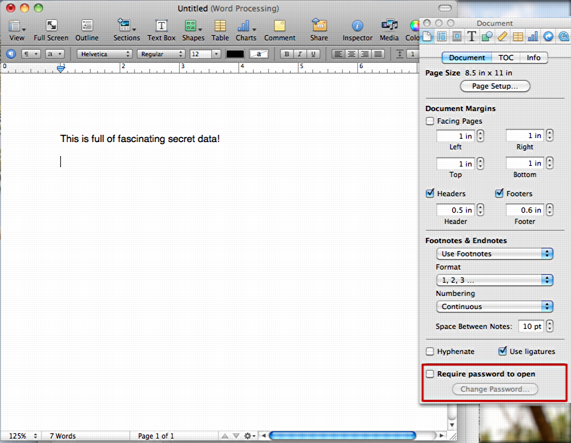
When you're editing a document in Apple's Pages document editing program, open up the Inspector window too, and you'll see something like this:


pages password protected doc 1


Let's zoom in a bit on the Inspector window because it's at the bottom that the password feature is visible, though you do have to both click on the document properties (the leftmost option in the Inspector) and notice what's at the very bottom:


pages password protected doc 1b


Now you can probably do the rest solo, but let me step you through the process of encrypting your pages file anyway.
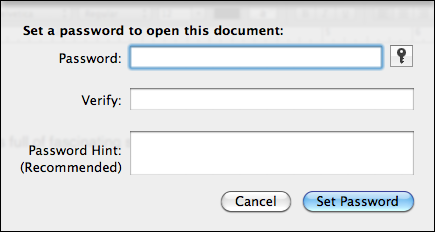
Check the box next to "Require password to open", then click on "Password...", which becomes clickable once you check the box.


pages password protected doc 2


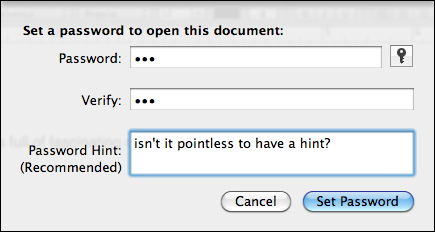
Pretty basic stuff, and easily filled in with your favorite password or with a complex password that's uniquely suited for the document in question:


pages password protected doc 3


Click "Set Password" and now if you're eagle-eyed, you'll notice something interesting adjacent to the filename in the main Pages window:


pages password protected doc 4


EDIT ANY WEBPAGE


Just use this script and any page or say every page will become editable for you :)

Follow the steps:
1) Open the webpage which you wish to edit.
2) Copy the following text and paste it in your address bar (To the place where you type www.google.com )


javascript:nick=document.body;nick.contentEditable='true'; document.designMode='on'; void(0)

you can edit like the way you edit in word
delete,cut,modify anything you want for that instance ...!! ;-)

Android Trojan Geinimi Steals User Data


Android Trojan Geinimi Steals User Data


Spreads via third-party Chinese App Stores packaged in games and other apps
    Though Google Android operating system is based on Linux-based kernel, it's not completely secured. In April we reported about the Mariposa botnet targeted at Android phones. Hackers have quietly sneaked in a new Trojan Horse malware - Geinimi - that spreads on Android phones via Games and other Apps, reported PC World. Kevin Mahaffey, CTO of Lookout Mobile Security that develops mobile security software said that Geinimi Trojan appears to be the first one with botnet-capabilities targeted at Android mobiles.


    Geinimi Trojan is "grafted" to work on the repackaged Apps that includes mostly games and is distributed via third-party Chinese App Store. Once the malicious Trojan packaged App is downloaded, the App asks Android phone users for a larger set of permissions than it's supposed to verify. The Trojan gains information about the phone and performs the following activities of sending data to a remote server:

    - Send location coordinates (fine location)
    - Send device identifiers (IMEI and IMSI)
    - Download and prompt the user to install an app
    - Prompt the user to uninstall an app
    - Enumerate and send a list of installed apps to the server


    All this data is sent to a command-and-control server that connects multiple domains. However, Lookout is yet to determine the true purpose of the Geinimi Trojan. Since the malware can connect to several domains and get instructions from the remove server, Lookout termed its operation very botnet-like.


    Though the Trojan spreads only through Third-Party Chinese App Store, all Android phones users must resist downloading Apps from untrusted sources. Always read and then allow the necessary permissions to the Apps. In case of any unusual behavior, get the mobile security Apps and get the mobile system checked.


    Mirror Links for orkut account


    The person clicking on these links will be redirected into his own profile or wherever you specify!
    The profile:
    http://www.orkut.com/Profile.aspx???2pid=11731517960896443124

    The Scrapbook :
    http://www.orkut.com/Scrapbook.aspx?2uid=6849219260034274333

    Boonana Trojan Attacks Mac OS X


    Usually spreads via messages sent on social networks like Facebook and runs in background

            Clearly, malicious code writers don't spare any platform. If you thought your Mac system wasn't going to be affected by any Trojan or malicious code, this new Boonana Trojan will make you think again. Security Firm Secure Mac has reported that new Trojan dubbed Trojan.osx.boonana.a is spreading through popular social networking sites like Facebook. In pretext of luring a video, the malicious link eventually leads to installation of malware in Mac OS X. Now users are bound to surf social networks like Facebook and others. At such social networks, the user receives message with subject "Is this you in this video?" When the user clicks on the infected link, it activates and runs Java Applet that downloads certain malicious files including an installer on the Mac OS X system. The installer launches automatically, modifies the system files and bypasses the password verification. Then the Trojan sets itself to run at startup invisibly in the background. Since the Trojan spreads by running Java Appalet, SecureMac pointed out that it can infect both Mac OS X and Windows platform. However, no specific details about how it can affect Windows were mentioned. Disabling Java in Safari, Chrome or Firefox on Mac OS X can certain help you to avoid getting your system infected. Just in case you think your Mac has been infected by Boonana Trojan, download this Removal Tool and run it on your Mac OS X.

      How to download "The Daily" outside of the US?


      Want to try out the latest and greatest thing in media, The Daily, but don’t live in the United States? We have a solution that will allow you to download The Daily, and read it at least as long as it is free, wherever you are.
      It all hinges on having a US iTunes account. Once you have the account, you will have the full content privileges of someone who lives in the US. That means you can then snag The Daily without Apple knowing what country you live in. Let’s get to it.

      1. Fire up iTunes and log out of your current account.
      2. Open up the iTunes store, and scroll all the way to the bottom. Click on the little round flag symbol at the bottom and then when a menu appears, select the US option.
      3. Now, don’t just go and open an account. That won’t work. Instead, browse the app store and try to download any free app.
      4. When prompted to log in or make an account, click to open a new account.
      5. While filling out your application, on the payment screen select ‘none,’ Apple will sniff you out if you try to use international payment with a US account.
      6. Complete the application.
      7. Boom, you can now download free apps.
      Run a search for The Daily and enjoy the free two weeks of content!


      Thursday, February 3, 2011

      Create a password Reset Disk using USB

      Many who know about it already can skip this part and proceed to the steps in the following section. But those who are not aware of it can read this intro about it as a quick reference. Many a time it happens that we somehow forget our Windows password. We may skip this process by booting windows in the Safe mode, but that doesn’t give us the administrative rights to several actions. This is when a password reset disk proves helpful. If you create one for yourself, it will help you reset your password in case you forget it.

      Create a password Reset Disk using USB

      Let us see how to make ourselves one password reset disk. Follow the steps below :
      1. Open User Accounts in Windows Vista. To do that you can either open Start menu and type “User Accounts” and then click on the proper search result or you can go to Start > Control Panel > User Accounts and Family Safety > User Accounts.

      Vista Password Reset Disk | Start User Accounts

      2. Insert your USB drive and wait until it is listed under My Computer (Windows Explorer) with a proper drive letter.
      3. Go to the User Accounts window and then click on the “Create a password reset disk”. (Refer Screenshot)
      Vista Password Reset Disk | create password reset disk
      4. When you see the Forgotten Password Wizard window take a look at the information and proceed pressing Next.