
twitter
    Find out what I'm doing, Follow Me :)
Showing posts with label Website Tools. Show all posts

Thursday, September 8, 2011

Update Yoast’s Google Analytics for WordPress Plugin v4.1.3 – XSS Scripting Vulnerability Fixed

A while ago I started seeing some very odd links appearing, ones that looked far too natural, it appeared as though the majority of them had the Google Analytics for WordPress plugin, developed by Joost de Valk, with the “Track outbound clicks & downloads” selected.

So I started to wonder if some how these sites had been hacked using a vulnerability somewhere in the plugin. I had a look through the code until I got to the function in charge of tagging the outbound links, although I could read the PHP code, I don’t really have much knowledge about XSS and SQL injection and stuff like that, so I asked James to have a look (the guy that likes to break things).

So James started having a look and after a bit of time studying the code he told me he had put a comment on my blog (I was running the Google Analytics for WordPress plugin with the track outbound clicks option selected). So I go to my blog and I see this:


On clicking the link, the javascript simply displays you the cookies you have for the site in question – not exactly dangerous, but it could be modified to cause much more mayhem I’m guessing.
The code James used was this:

Hi this is an http://www.google.com']);alert(document.cookie);return false;//" rel="nofollow">interesting link don't you think?

We let Joost know, James suggested a fix and Yoast got it sorted almost immediately, you can download the latest version here (version 4.1.3). If you haven’t used the Google Analytics plugin by Joost (Yoast), I’d highly recommend trying it out. I’ve currently got it running on my personal site and it tags all out going clicks, which is great for tracking affiliate clicks and seeing where the visitor came from, amongst other things.


Tuesday, September 6, 2011

Using Gmail, Calendar and Docs without an Internet connection

The great thing about web apps is that you can access all of your information on the go, and we’ve introduced ways to use Google Apps on a variety of devices like mobile phones and tablets. But it’s inevitable that you’ll occasionally find yourself in situations when you don’t have an Internet connection, like planes, trains and carpools. When we announced Chromebooks at Google I/O 2011, we talked about bringing offline access to our web apps, and now we’re taking our first steps in that direction. Gmail offline will be available today, and offline for Google Calendar and Google Docs will be rolling out over the next week, starting today.

Gmail Offline is a Chrome Web Store app that’s intended for situations when you need to read, respond to, organize and archive email without an internet connection. This HTML5-powered app is based on the Gmail web app for tablets, which was built to function with or without web access. After you install the Gmail Offline app from the Chrome Web Store, you can continue using Gmail when you lose your connection by clicking the Gmail Offline icon on Chrome’s “new tab” page.


Google Calendar and Google Docs let you seamlessly transition between on- and offline modes. When you’re offline in Google Calendar, you can view events from your calendars and RSVP to appointments. With Google Docs you can view documents and spreadsheets when you don’t have a connection. Offline editing isn’t ready yet, but we know it’s important to many of you, and we’re working hard to make it a reality. To get started using Google Calendar or Google Docs offline, just click the gear icon at the top right corner of the web app and select the option for offline access.

IT administrators can deploy Chrome Web Store apps to users en masse by setting up organizational policies for Chrome.

Today’s world doesn’t slow down when you’re offline and it’s a great feeling to be productive from anywhere, on any device, at any time. We’re pushing the boundaries of modern browsers to make this possible, and while we hope that many users will already find today’s offline functionality useful, this is only the beginning. Support for offline document editing and customizing the amount of email to be synchronized will be coming in the future. We also look forward to making offline access more widely available when other browsers support advanced functionality (like background pages).

Sunday, September 4, 2011

How to Install IIS onto Windows 7

IIS, or Internet Information Server, is a web server application that you use to set up your own web server, and publish your own content. You can use IIS to set your computer up to act as an Internet web server, or it can be used locally to serve an intranet. Many companies use intranets as a resource for employees to share information and can be very useful.

When you first install Microsoft Windows 7, IIS is not turned on by default, so in other words you cannot begin to publish websites straight out the box. It is however, easy to turn on, and this is how you do it.
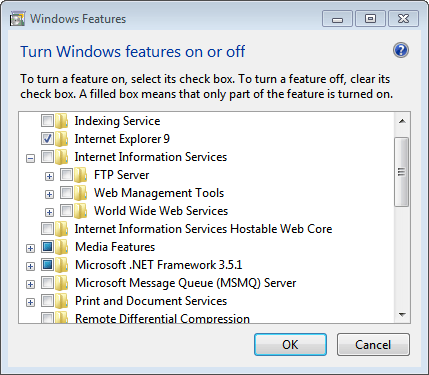
Firstly, you need to go to your start menu, and click on Control Panel. This is an area where you can alter settings on your computer, and add or remove specific programs. Find the section called “programs” and click on it. This should bring up a new window with a list of selections. One of these options will be to “turn windows features on or off”. Find this and click on it to go to the next screen.

The next screen will be a long list of windows features that are already a part of Windows. Some will be turned on already by default, and some will be switched off. You need to find the section called “Internet Information Services” and click on the plus symbol next to it. IIS has many parts to it, and by expanding this section, you are revealing all those parts so you can choose which ones to turn on.

internet information service

You will see three sections, FTP Server, Web Management Tools, and World Wide Web Services. Each one will have multiple options inside. The main one will be under Web Management Tools, and will be called “IIS Management Console”. You need to check this box. This effectively turns on IIS on your system. While you’re in this section, you can also check any other features you think you may need. For example if you want to set up your computer as an FTP server, you can check the boxes related to that. FTP will allow you to give access to some of your files to friends and work colleagues by giving them login permissions. The will then be able to download files you give access to directly from the Internet. They may also be able to upload files directly to you computer if you give them access to do so. FTP can be a very useful feature.

However, now that you’ve checked the “IIS Management Console”, all you need to do is click on “apply”. You may then need to reboot your computer, as Windows will need to make certain changes in order to activate the new feature. Once you’ve rebooted, you should be able to go to the address http://localhost/ on your computer in order to access IIS. Of course you’ll need to set up the system and then design your web-pages, but for now you have successfully set up your very own web server.

Tuesday, August 16, 2011

Processor Selection Guide For Servers,Business & Gaming

When it comes to processor considerations, the home users falls into one of the two categories – The Gaming Enthusiastic and Regular Work users who are budget conscious. Budget PC owners would use their computer for surfing the web,doing home accounting and Microsoft word related job. On the other hand gamers would push their PC beyond the needs of a regular productivity applications.
processor selection for gaming
A CAD/Visual Modelling user would want the same high CPU(128bit or more) performance that the gamer lusts for. Differentiation becomes sharper when you consider complete PC solutions. For example where a gamer could make do with 8GB of RAM, while the CAD user working with large drawings could use all the RAM he/she can afford. Since complete system are not our focus here, these categories can be grouped together.

Enterprise Servers

processor for business  
You can easily get away with a Athlon X2 Dual Core CPU’s or Intel’s Core 2 Duo Processors  for small networks. Top of the line systems are needed only by the most intensive applications. For example Enterprise data servers and terminal servers supporting thin clients are always CPU starved. For Such Strenuous usage, the Intel® Xeon® Processor Series still rules supreme. Offering Generous level 8 MB – 12 MB of L2 cache per processor with multiprocessing capability, They are only options for high End Needs.

Business

If all your business demands from your PC is a little accounting and web surfing, just about any processor will do fine – the Anthlon X2 gives exceptional vale for money. For more intensive spreadsheet and graphics/studio work needs, go in for a Intel Core 2 Duo or Intel Corei3 or Intel Corei7 processors.

Games

budget processor small network 
Over the years, games have always been at the forefront of technology. Constantly enhancing realism and creating even more immersive environments, they are biggest processors hogs. Consequently, a serious gamers need a high end processor the Amd Phenom IIx6 Series Processors are best choice if you want to save some money otherwise Intel I7 920 is just more than enough what you need for gaming.

Budget

On a decent budget AMD Athlon is the processor of choice, offering great performance at low cost.
When you choose a processor, make sure you put in the same careful consideration into choosing components that compliment its capabilities. Only then you can get the most out of your machine.


Monday, August 15, 2011

What is HTTP, Role of HTTP in Web and HTTP Status Codes

There are two main modes of transferring file over the World Wide Web, one is FTP (file transfer protocol) and other is HTTP (Hypertext Transfer Protocol) Which is the set of rules for transferring files (text, graphic images, sound, video, and other multimedia files) on the World Wide Web. As soon as a Web user opens their Web browser, the user is indirectly making use of HTTP. HTTP is an application protocol that runs on top of the TCP/IP suite of protocols. Whereas, FTP is used to transfer bulk files
How HTTP works

We submitted URL (universal resource locator) in the URL bar and hits enter, Then our browser send HTTP requests to the web server for the web pages. Web server serves the HTTP request by convert that page in to appropriate form that our web browser can read and send the result via HTTP response. So HTTP is a medium to communicate to the web server. One more thing some server sends HTTP cookies on the web browser, in which all the personal setting and login data of user is stored.
HTTP
There are various HTTP status codes to maintain the internet standards and helpful to sort out the problem. HTTP status codes are divides in to four major categories.
  • 100-101 Intermediate Status
  • 200-206 Successful Response
  • 300-307 Redirects
  • 400-417 Request Errors
  • 500-505 Server Errors
http-server-header-status-codes
The details of these HTTP status codes are:
  • 100-101 Intermediate Status
100 continue The server returns this code to indicate that it has received the first part of a request and is waiting for the rest.
101 switching protocol The requester has asked the server to switch protocols
  • 200-206 Successful Response
200 Successful The server successfully processed the request
201 created the server created a new resource
202 accepted request is accepted and under processing.
203 Non-authoritative information The server processed the request, but is returning information that may be from another source
204 No content Server not returning any content after processing request
205 reset content response requires that the requester reset the document view. after facing 204 status code.
206 Partial content The server successfully processed a partial GET request.
  • 300-307 Redirects
300 Multiple choices There are multiple choices for users.
301 Moved permanently In future user will be redirected to the given url
302 Moved temporarily Temporarily user will be directed to the given url
303 See other location For all requests other than a HEAD request, the server automatically forwards to the other location.
304 Not modified The requested page hasn’t been modified since the last request.
305 Use proxy The requester can only access the requested page using a proxy.
306 Switch Proxy No longer used.
307 Temporary redirect The request should be repeated with another URI, but future requests can still use the original URI.
  • 400-417 Request Errors
400 Bad request The request cannot be fulfilled. because it is inappropriate.
401 not authorized specifically for use when authentication is possible but has failed.
402 Payment Required No longer used
403 forbidden Access decline due to unauthorized.
404 Not found When no results found as per query or URL provided by user
405 method not allowed The method specified in the request is not in the correct form.
406 Not acceptable The requested page can’t respond with the content characteristics requested
407 proxy authentication required Need to authenticate with proxy
408 Request timeout Request is not processed in the appropriate time interval
409 conflict When request conflict occurs
410 Gone Indicates that the resource requested is no longer available and will not be available again
411 length required The server won’t accept the request without a valid Content-Length header field
412 Precondition failed request fails to fulfill the precondition that are required by web server
413 request entity too large Server is not able to process too long request
414 Requested URI is too long Server can’t process long query string.
415 unsupported media type The request is in a format not support by the requested page
416 Requested range not satisfiable The server returns this status code if the request is for a range not available for the page
417Expectation failed server failed to process what ever the request expect by the client

  • 500-505 Server Errors
500 internal server error Server fails to interpreters the HTTP request. 

501 Not implemented When request is partially completed or can’t be send to client

502 bad gateway Server gateway is nor responding

503 Service unavailable server  is temporary out of service

504 gateway timeout Didn’t receive timely response from upstream server.

505 HTTP version not supported The server doesn’t support the HTTP protocol version used in the request.
I hope the concept of HTTP is very clear to you.

Tuesday, August 2, 2011

SiteTrail, The Ultimate Website Analysis Tool

Have you ever wanted to know how much traffic your favorite website was getting? Or how many RSS subscribers a site had?

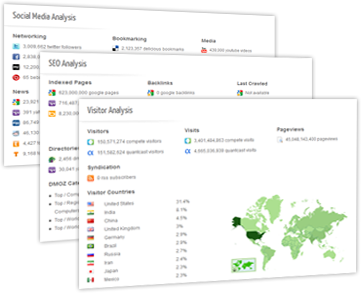
SiteTrail is a website analysis tool that provides you with data consisting of over 100 different metrics for any given website. All you need to do is simply enter the domain name of the website you want to analyze into a text box and viola!


While there are plenty of other online tools that can help you find analyze details of a website such as who is the owner of a site is, where that site is hosted, what kind of traffic it gets, etc. – SiteTrail performs an even more comprehensive analysis of websites. And the best part is that you get all the details at one place.

You can even find out things like how many diggs you site has received, how many times it has been talked about on MySpace, and more technical info such as the site’s DNS records as well. Very useful!