

twitter
    Find out what I'm doing, Follow Me :)

Monday, July 18, 2011

Get Avast Internet Security One Year License For Free

Like many other security software companies, Avast is offering both a free basic version of their software and a commercial advanced version that comes with extra features. Avast Internet Security is the companies’ flag ship product that includes all the features of the free and pro versions of their product plus a firewall, antispam protection or identity theft protection.

The German computer magazine COM is currently running a giveaway of avast! Internet Security. The promotional web page is accessible by anyone. While only in German, it provides a license that works with English versions of Avast Internet Security as well.

Here is how you can get your free license of Avast Internet Security. Start by downloading the latest version of the security program from the official website. The link points to the English version of the software. I have not tested other language versions, they may work as well.

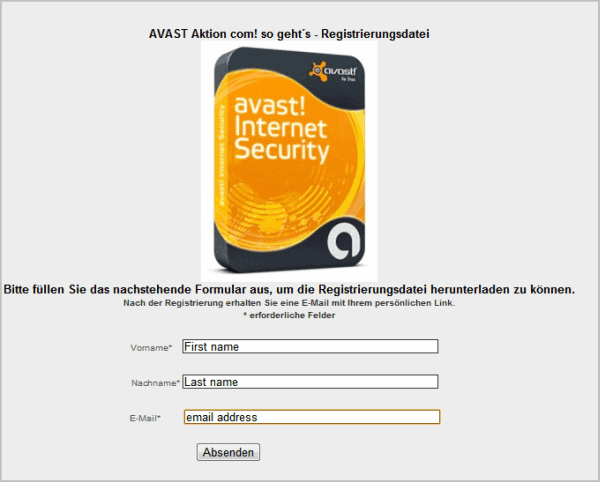
Go to the promo page and fill in your first name, last name and email address. You will receive a license download link in an email once you click on the send (Absenden) button.
avast internet security license

The license file is zipped which means you need to unzip it first. Make sure you have Avast installed before you click on the License com! so geht´s.avastlic file. A click on the file registers the program. You can alternatively open Avast Internet Security and load the license under Registration Options from within the program interface.

The license itself expires April 2012, which means you get about nine months of free use from this marketing opportunity.

You can post your suggestions and reviews about this post in comments....!!

Sunday, July 17, 2011

Windows 7 Keys............For activate.......

Use the below keys to activate your windows 7

482XP-6J9WR-4JXT3-VBPP6-FQF4M

7XRCQ-RPY28-YY9P8-R6HD8-84GH3

D9RHV-JG8XC-C77H2-3YF6D-RYRJ9

JYDV8-H8VXG-74RPT-6BJPB-X42V4

RFFTV-J6K7W-MHBQJ-XYMMJ-Q8DCH

Hack connected Computers in WIFI.........

The internet is ever growing and you and I are truly pebbles in a vast ocean of information. They say what you don’t know can’t hurt you. When it comes to the Internet believe quite the opposite. On the Internet there a millions and millions of computer users logging on and off on a daily basis. Information is transferred from one point to another in a heartbeat. Amongst those millions upon millions of users, there’s you.

In this tutorial i am going to show you how to to access someone’s facebook, youtube, and many other accounts which is using the same WiFi as you.

You need:
Mozilla Firefox
Firesheep – A Firefox extension that demonstrates HTTP session hijacking attacks.
WinPcap – WinPcap is an open source library for packet capture and network analysis for the Win32 platforms. It includes a kernel-level packet filter, a low-level dynamic link library (packet.dll), and a high-level and system-independent library.

Step 1: Install WinPcap then drag the Firesheep add-on, and put it on the Firefox icon. Firefox will open and will ask you to install the add on. Install it and restart Firefox.

Step 2: Open the add-on (You can do it by clicking on View ->Sidebar -> Firesheep), then click on Start Capturing and it’ll start capturing, and as soon as somebody logs in any account it’ll show up the logs, and then you can access their account.

Simple, but functional and VERY effective method to hack someones facebook, youtube, myspace, etc. account through WiFi.

Friday, July 15, 2011

Unlock your mobile Free from code

If your mobile phone is locked to particular sevice provider you can unlock it by entering the code you will get from the websites listed below.
If you know any other good site offering free downloads you can suggest that in comments and if found good it will be updated to our blog with your name as referal.

1.Unlock Nokia

This site offers nokia phone unlocking in three simple steps.
unlock nokia visitors review: 4.5/10


2.Free Unlock mobile


This site offers free phone unlocking for more than 500 service providers worldwide.
The site offers a simple, user-friendly interface.
free unlock mobile visitors review: 3.5/10
3.Free Unlock mobile

At this popular site, you'll find thousands of free downloads for your mobile phone,
including ringtones, tutorials, unlocking software, logos, wallpapers, themes, phone applications, phone games, and much more.

free unlock mobile visitors review: 3.5/10

This site offers a free "unlock codes generator" that you can use to unlock your phone.
(which will enable you to use your phone with any service provider worldwide).
free unlock mobile visitors review: 3/10

This is one more site offering unlock service for mobile.
free unlock mobile visitors review: 1/10

How To Remotely Control Your Computer from an iPhone or iPod Touch

Being able to remotely control your computer is cool and convenient. Today we take a look at how to do it from your iPhone or iPod Touch with Splashtop Remote Touchpad.


1. First download the Splashtop Remote Touchpad from your iOS device or from the App Store in iTunes.
sshot-2011-04-25-[00-25-21]
2. After you download it, launch Touchpad from the home screen.
sshot-2011-04-25-[00-25-55]
3. The first time you start it up, you’re prompted to provide anonymous usage stats or not. The choice is yours – this will be the last time you see this message.
sshot-2011-04-25-[00-26-16]
4. Then you will see the instructions on the lower section of the screen. Notice that to begin, you’ll need to download the Splashtop Remote desktop app.
sshot-2011-04-25-[00-26-43]
5. Now you’ll need to visit the Splashtop Remote website and download the Remote Streamer for your Mac or PC.
sshot-2011-04-25-[00-13-19]
6. After its downloaded right-click the executable file and Run as administrator. Installation is basic – just accept the defaults in the install wizard.
sshot-2011-04-25-[00-27-50]
7. Launch Splashtop Remote and go through the setup process.
sshot-2011-04-25-[00-31-29]
8. After you go through the four initial setup steps, you can configure the Remote Streamer just like you would do for Splashtop Remote Desktop. From here you can turn it on or off, configure Settings, Security, and Network.
sshot-2011-04-25-[00-33-29]
sshot-2011-04-25-[00-34-03]
9. When you minimize the Remote Streamer, you’ll get the following message letting you know it’s still running in the background.
sshot-2011-04-25-[00-34-17]
10. The Splashtop Remote icon lives in the Notification Area on the Taskbar.
sshot-2011-04-25-[00-39-03]
11. Now that you have the Remote Streamer installed, setup, and Running go to you iPhone or iPod Touch and start using the Remote app. It will scan your system for computers on your network that have the Remote Streamer installed and list them. Just tap on the one you want to access.
sshot-2011-04-25-[02-13-35]
12. Then you’ll be prompted to enter in the password you created in the earlier steps.
sshot-2011-04-25-[02-14-02]
13. Then you can use it just like a touchpad on a laptop to move the cursor around, right and left click, double tap an application to install it…etc..
sshot-2011-04-25-[02-14-27]
14. Tap on the icon in the upper left corner of the touchpad screen to bring up the keyboard features.
sshot-2011-04-25-[02-15-52]
15. Now you have more controls to type in text, access the Windows key, arrows, and more.
sshot-2011-04-25-[02-16-18]
16. Tap on the icon in the upper left corner again to return to the touchpad.
sshot-2011-04-25-[02-16-42]
17. You can choose different settings for the touchpad button including tweaking the sensitivity to how you like it.
sshot-2011-04-25-[02-18-56]
18. This is a great solution if you have an HTPC or want to kick back in your office chair and watch media on on Windows Media Center or iTunes.
sshot-2011-04-25-[02-04-52]
sshot-2011-04-25-[02-08-50]
The Splashtop Remote Touchpad is very responsive and easy to use. Of course you’ll need to use it over a local Wi-Fi network. If you have an iPhone or iPod Touch and want an easy to use remote control for your computer, this app definitely gets the job done.
They also offer an iPad version for $2.99 if you want to use that instead and remember it works for Mac’s as well.

[Via Simplehelp.net]

Recover Your Deleted Photos.....

Sometimes by mistake we delete photos from our digital cameras , memory cards , flash memory and from our hard disks too . So now when you make such mistake again then you can try Easy Digital Photo Recovery software to recover your photos from cards and hard disks too .

How this works : In this software all we have to do is select the disk space from where you deleted your images and then recovery software will try to undelete all those process and recover all erased photos from your camera cards additional drives as well as from hard disk . This software supports NTFS, FAT16 and FAT32 file systems and even find images whose location and size is not stored by the file structures .

Other features are like we can take preview of images before recovery and recover almost all type of image files like jpeg , png , gif etc . Most of the branded digital cameras are supported like Canon, Nikon, Olympus, Sony, Samsung, Epson, Fuji, etc . All recovered files can be filtered as names and size and named folder are supported too . Files can also be recovered if photos have been deleted in DOS prompt also . You can download this software from here.

Download software

Thursday, July 14, 2011

How To Speed Up Menus in Windows 7

The new user interface in Windows 7 elegant and smoother to navigate versus XP. However, there are tweaks you can do to make it even better. Here we’ll look at how to speed up the menus by tweaking the Registry.

This tutorial will show you how to make tweaks to the Registry in Windows. Before making any changes, it’s a best practice to back it up first.
1. Click on Start and type regedit into the Search box. At the top you’ll see regedit.exe, right-click on it and click Run as Administrator.
sshot-2011-05-13-[22-40-36]
2. The Registry editor will open. In the left pane navigate to the following:
HKEY_CURRENT_USER\Control Panel\Desktop
Then in the right panel scroll down to MenuShowDelay and double click on it.
sshot-2011-05-13-[22-49-14]
3. You should see the default Value Data is set to 400. Change this to a smaller number or you can even go with zero if you want menus to come up instantly.
sshot-2011-05-13-[22-50-00]
4. After setting the Value Data click OK.
sshot-2011-05-13-[23-02-17]
5. Now when you look under the data column for MenuShowDelay is set to zero or whatever you set it to.
sshot-2011-05-13-[23-04-18]
6. Close out of the Registry and click on the Start Menu – you should notice it opening up much faster than before.
sshot-2011-05-13-[23-07-52]
That’s all there is to it! This is just a small way to help speed up the user experience on your Windows 7 system.

[Via Simplehelp.net]

Wednesday, July 13, 2011

Link to a Specific Spot in a YouTube Video

A lot of times you want to show you friends a cool video, the cool part doesn’t happen later in the timeline. You can tell them the action takes place at the 2:03 mark for example, but wouldn’t it be more cool to just link to that spot? Here is how to do it.


1. Go to YouTube and sign in with your Google account.
sshot-2011-06-04-[06-58-58]
2. Start watching videos, and when you find something cool you want to share right-click on the timeline at the point where you want to start sharing the video.
sshot-2011-06-04-[07-03-35]
3. Then click on Copy Video URL at Current Time.
sshot-2011-06-04-[06-58-04]
4. Now you an share the URL via IM or email and when the user clicks the link they go to the point in the YouTube video you selected.
sshot-2011-06-04-[07-15-49]
That’s it! This is a cool trick so if a funny part or cool part of a video doesn’t start until well over 2 minutes into the clip – you can link to just a few second before it.

Do Posting To Facebook From Google+ Account

This tutorial will walk you through the steps required to view your Facebook stream right from within Google+


For this feature to work, you’ll need to use either Google Chrome or Firefox as your web browser – though it doesn’t matter if you’re using Windows or OS X.
  1. The installation will be slightly different depending on which browser you’re using. I’ll outline both. If you’re using Firefox, skip down to step #6 below. If you’re using Chrome, keep reading.
  2. Start out by heading to this web site (link will open in a new window or tab). Click the Get Google+Facebook >> button.
  3. The ‘warning’ message will appear in the Extensions bar at the bottom of your browser. Click the Continue button.
  4. Click the Install button when prompted.
  5. Now that you’ve installed the Extension in Chrome, jump down to step #9 get it up and running.
  6. Firefox users – head over to this web site (link will open in a new window or tab). Click the Get Google+Facebook >> button. A ‘warning’ window will quickly pop up telling you that Firefox blocked the installation of the add-on. Click the Allow button in that ‘warning’ window (see image below).
  7. Now Firefox will prompt you to install the add-on. Click the Install Now button.
  8. Finally, click the Restart Now button to finish the installation.
  9. Head over to Google+ and sign in. You’ll now see a “Facebook” button in the navigation section (see image below). Click it.
  10. Click the Connect with Facebook button.
  11. Click the Allow button when prompted by Facebook.
  12. Now once you click that same “Facebook” button in your Google+ navigation section, your Facebook News feed will be displayed!
  13. You can even update your Facebook Status from within Google+ now. Click the What’s on your mind? box at the top of the page.
  14. Enter your status update and then click the Share button …
  15. … and your update will appear on Facebook.
  16. There are still some limitations to the features that this Extension/Add-On adds – for example, you can’t include image or other attachments to your Status Updates. Also, you can’t see or reply to any comments on your friends posts. You can click the link below their update, and be taken to it directly on Facebook itself, however. Have fun! 

Keep Surfing Borntohack (Shaify Mehta : Hacker , Programmer , Cracker)

Tuesday, July 12, 2011

jailbreak all iDevices in a simple way : Jailbreakme.com

Jailbreakme.com has become the easiest way to Jailbreak all idevices and all firmware till iOS 4.3.3.

Here are the steps what u have to do :-

Step 1: Open Safari in your iDevice.

Step 2: Navigate to www.Jailbreakme.com

Step 3: Tap on the free button and it changes to a green install button.


Step 4: Now tap once on that green button.
           Caution : Sometimes the green button goes back to free button and   
                          nothing happens. Donot worry just the steps from step 3 and     
                          carry on.....


Step 5: Reboot device and cydia will be installed and enjoy ur jailbroken device (: