
twitter
    Find out what I'm doing, Follow Me :)

Saturday, May 28, 2011

How To Speed Up Xp Vista Win 7 with Page Indexing

Page indexing is a utility in windows xp which is default in all windows operating system used for indexing the pages in the drives. What Exactly i mean is that when ever we load a windows there is a built in option called page indexing which is used for searching the pages instantly. Search indexing scans through all files and folders in windows xp & maintains a record about them which is not useful for some of us who don’t check our missing files in the drive daily.
Indexing just makes a faster search of the drive but slows down some resources of the operating system. Better to disable the page indexing option in the windows to make a faster and reliable system.Following are the steps to be followed in various operating system to disable the Page indexing.

Steps to disable page indexing in Windows Xp:


1) Open My Computer.
2) Right click on the Drive (Basically C drive) and select Properties and go to General.
3) You can a see a highlighted box down “Allow Indexing Service…..” now uncheck it and click on apply.
4) You will be asked whether to apply to subfolders or not. Click on yes and then ok.
5) Wait until it finishes the process. Normally it takes some times so be patient and some times notes u as a fail and will give a ignore or cancel option. You can just click on ignore all.
6) You can the above screenshot which is marked with a red circle.
7) Apply for all the drives which are available in your harddisk.

8) This will improve the speed of the windows xp.


Steps to disable page indexing in Windows Vista:


1) You can completely disable the indexing options you can do it disable the entire service.
2) Go to Run and type services.msc and find “Windows Search” and open by double clicking it.
3) A New Windows search popup box will load onto the screen and there you can a see Startup type in the general tab change it disabled and Services status to stop. This will stop the service. Check the below screenshot.
4) Now windows vista search indexing is stopped. You can also follow the windows xp steps here in vista too.


Steps to disable page indexing in Windows 7:

1) Follow the same steps as given in windows vista above :)

Top 15 Best Free Antivirus For Windows 7

Now a days we see a lot of people are searching for a good antivirus. No wonder people are searching are the antivirus software’s, but the thing is they want a consistent and a free antivirus which updates regularly and catches new viruses as soon as they try to enter your system. The moment we talk about the antivirus,we will say go for either Kaspersky, BitDefender, Norton, ESET NOD 32 and etc. But all these antivirus software’s are a bit expensive. So how to protect your data with our buying a antivirus software? No problem at all.i have a list of free antivirus softwares which run for both Windows 7 and Windows Xp. These free antiviruses are not only free but also very consistent and worthy to use. Here goes the list


I would say Microsoft Security Essentials is the most simple and easiest way to protect your computer. The main advantage of this antivirus software is, its completely free and its interface is really very easy and user friendly. The only thing you have to remember is that your Windows Operation system which you are using must be a genuine one. If you have a genuine Windows Operating system, Microsoft Security Essentials will automatically updates and installs new items daily. If not you have to try your luck with other antivirus or atleast get a new genuine Windows key.Microsoft Security Essentials can guard your system from various viruses, malicious softwares and spywares. You can always check out the official website for latest info. Click here
You can download the software here for free of cost : Download


This free antivirus is really worth to give it a try.Panda Cloud Antivirus actually is very useful for scanning and finding viruses in your computer. Its unique interface is really easy to work and more consistent than any other. This antivirus comes from the very famous Cloud Antivirus Security. You can deactivate many unwanted process operations running behind your computer and make a quick background scan. When installed, the antivirus will first try to connect to there Panda Labs Collective Intelligence servers and protects your computer from viruses and malicious softwares. You can always visit there official homepage for latest info : Click here

You can download the Panda Cloud Antivirus software from here : Download
Avast is really a great way of protecting your computer from viruses. I would say there New Internet Security software is pretty impressive. But while coming to the Avast Free Antivirus its really gives maximum protection to your computer for home machines.Though it is not quite impressive with the Online shopping and bank account safety, Doesn’t really stop hackers to harm your computer automatically. And also quite unsatisfactory with the SPAM messages and mails. But you can find all of this features available in Pro and Internet Security. Avast Free Antivirus best part is that it will automatically update when there is a new update available. You can visit the official home page for more info : Click here

You can download the Avast Free Antivirus software from here : Download
4) AVG Free Antivirus :
AVG antivirus was really a great software when they launched its service as a free antivirus. The updates are really easily to download and very consistent. There was a false information about the software that it will automatically creates a virus application system in ones computer after 3months and will cause the whole system to crash. This is just a bad rumor about the software. They took this as a challenge and released a new interface which is very impressive and very consistent.Since the software was very famous from past years, it got many users who trust the software. The AVG Free Antivirus is really very very simple to install and use. All you have to do is to download the software and install it. AVG Free Antivirus also a upgraded version which acts similar to the Free AVG Antivirus Software. So its not that necessary to buy it. You can visit there official page for more info : Click here
You can download the AVG Free Antivirus from here : Download
5) Avira AntiVir Personal :
Our last free antivirus is Avira AntiVir Personal which is really the simplest antivirus in the market. The simple user interface is easy to understand. Avira AntiVir Personal is very good in detecting root kit threats and other viruses. One of the most important feature of Avira AntiVir Personal is that it can find the malware very easily. People say that Avira AntiVir Personal is not good at finding the false and virus emails in our system, which is completely a false imagination. You can visit there officail home page for more info : Click here

Download the Avira AntiVir Personal free antivirus from here : Download
This is our personal list of Top 5 Free antivirus softwares. We have a lot of other free antivirus which are very consistent and efficient when compared to above 5. But as we all know, Brand matters all the time. To build trust in ones heart , the antivirus software must be free atleast for 3months and very consistent in upgrading the latest viruses and malwares. Apart from these above software we still have a lot of free antivirus. I will make a list of other 10 trusted antivirus softwares below. Please check them out.
Free Antivirus Softwares :
  1. Free AntiVirus (12.70 MB)
  2. My Free Antivirus ( 21.70MB)
  3. Kingsoft Free Antivirus (18.23MB)
  4. Gen Federico Free AntiVirus (12.70MB)
  5. Xyvos Free Antivirus (2.2MB)
  6. Rising Antivirus Free Edition (89.02MB)
  7. eScan Anti Virus & Spyware Toolkit Utility (120 MB)
  8. ClamWin Free Antivirus (36.17 MB)
  9. Comodo Firewall + Antivirus (75.33MB)
  10. GetGo Download Manager (5.06 MB)

Stored User Names and Passwords from of your system ..!!

RUN Control keymgr.dll  .....!!!

Friday, May 27, 2011

How to Protect Yourself When Banking Online

Millions of Americans bank online, which can be as safe as it is convenient when the right security measures are in place. An estimated 98 million Americans bank online, thanks to Web-based bill-paying, money transfers and other activities made possible by financial institutions and service providers. The convenience of completing these tasks at home helps simplify hectic schedules and provides customers with 24-hour account access.

Although financial institutions have security measures in place to protect their customers, cybercriminals have devised ways to circumvent some of these security devices. One tactic is to attack a bank customer's computer with a technique called keystroke logging (or just keylogging), which puts both your identity and your finances at risk.

Internet security firm Webroot reports that cybercriminals are churning out new variants of malware programs designed to log keystrokes at an increasing rate. One such program is called Zbot, which can activate while the owner of an infected PC is browsing a financial institution's Web site. In recent months, Webroot's Threat Research Lab has detected a steady increase in the incidents of Zbot.

The program - and others like it - can not only record what a person types, such as the bank account username and password, but can also steal the responses to "security questions" the bank might ask. Some versions of Zbot can take pictures of the screen whenever the bank customer clicks his mouse, which defeats even "soft" on-screen keyboards that some banks use specifically to thwart keyloggers.

"Online banking sites are tempting and potentially very lucrative channels for cybercriminals to target a great mass of people," said Mike Kronenberg, chief technology officer for Webroot's consumer security division. "We're seeing malware authors rapidly update their banking Trojan programs in an effort to avoid detection by Internet security solutions. This means consumers need to stay on top of protecting themselves online."

Kronenberg recommends three key steps for protecting your personal finances and your identity online:
  • Be Protected:
    Make sure you have a reputable antispyware and antivirus program installed on your computer. Be careful when doing searches for "free" antivirus software because the results are often decoys that have malicious programming built in to them.
  • Stay Protected:
    Suppress the urge to hit the ignore button when you get those pesky reminders asking if you would like to check for updates. By having the most up-to-date software for both your operating system (like Windows or Linux) and your antispyware and antivirus program, you get the highest level of security.
  • Diversity is key:
    Would you ever use the same key for your car, office and your home? Although it may seem simplest to just use the same password for all your online accounts, it is perhaps the riskiest thing you can do to open yourself up to identity theft. If just one of your accounts is hacked it opens the door for the thief to gain access to all of them.

Top 5 Anti-Malware Protection Tools

From firewalls to antivirus software to tools for combatting rootkits and spyware, here are some great downloads to protect your system against malicious attacks.

ZoneAlarm

Check Point Software's ZoneAlarm may well be the most popular free firewall on the planet, and the most recent release (finally) protects Vista machines. Arguably, ZoneAlarm is the product that made everyone conscious of the need for firewall protection. It's extremely easy to use, and its method of configuring outbound protection is particularly useful. Whenever a program tries to make an outbound Internet connection, ZoneAlarm announces it with a pop-up alert. You can then permit or disallow the connection, on a one-time basis or permanently. Configuring your level of protection is a simple matter of moving a few sliders. Though the free version of the software is exclusively a firewall, Check Point also offers for-pay security suites. But if all you're looking for is a firewall, stick with the free version.

Comodo Firewall Pro

ZoneAlarm is extremely popular, but that doesn't automatically make it the best free firewall you can find. One formidable contender is Comodo Firewall Pro, which independent testing site Matousec rated as the top firewall. Matousec found that Comodo offered the highest level of antileak protection, one measure of a firewall's effectiveness. Comodo offers true two-way firewall protection, is highly configurable, and (unlike most other firewalls) provides a great view of your system and your Internet connection.

Avast

Tired of dealing with bloated, overpriced security suites that bog down your system and cost an arm and a leg, when all you want is antivirus software? Then get Avast, a superb antivirus program that's free for home and personal use. Because it's a lean piece of software, it imposes a relatively light burden on system resources and RAM. Despite this, it kills viruses in their tracks and has plenty of extras, including live scanning to prevent viruses from infecting your PC in the first place. Avast can scan regular and Web-based e-mail for viruses, too, and it protects against instant messaging viruses, peer-to-peer dangers and more.

AVG Anti-Rootkit

One of the most feared types of malware is the rootkit -- malicious software that many types of antimalware can't detect. Not uncommonly, bad guys use rootkits to hide Trojan horses, which can then be used to take over your PC without your knowledge. AVG Anti-Rootkit's sole purpose is to find and kill rootkits. Run it and it scans your PC, sniffing rootkits out and removing any it finds. (Note that this utility doesn't work with Windows Vista.)

Spyware Blaster

Some of the nastiest kinds of spyware -- autodialers, home page hijackers, and others--install themselves as ActiveX controls. Spyware Blaster protects you against them, blocking the installation of ActiveX-based malware and other types of spyware, and eradicating tracking cookies that might otherwise invade your privacy. The program works with Firefox, Opera or Internet Explorer, and it prevents your browser from being diverted to dangerous sites. One particularly nice touch is the utility's System Snapshot, which (as you'd expect) takes a snapshot of your PC; if your computer gets infected later on, you can revert to the clean version.

Very Slow Boot When Networking ???

On some XP Pro installations, when connected to a network (peer-peer in this case),

the computer boot time is over 1:40. The system seems to freeze after logging in and the

desktop may not appear or will freeze for a minute. As timed with the utility,

Bootvis.exe, the problem was with the driver mrxsmb.dll, adding over 67 seconds to the

boot time. Turning off and restoring file and printer sharing eliminated 65 seconds from

the boot time.

· Alt-click (or right-click) on Network Places > Properties.

· Alt-click on Ethernet Adapter connection > Properties.

· Un-check "File and Printer Sharing for Microsoft Networks" > OK.

· Reboot.

· If you need file or printer sharing, repeat the above, re-check the box and re-boot

again.

Thursday, May 26, 2011

Set Processes Priority

Follow this tip to increase the priority of active processes, this will result in prioritisation of processes using the CPU.


CTRL-SHIFT-ESC

1.Go to the second tab called Processes, right click on one of the active processes, you will see the Set Priority option


2.For example, your Run your CDwriter program , set the priority higher, and guess what, no crashed CD’s

Fake Mailer: How to send Anonymous Email

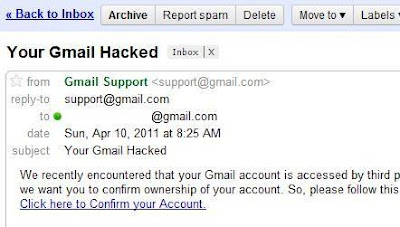
As we all know, Phishing is one of the most useful and simple methods for hacking email accounts. While phishing anyone's email account, you need to send the victim an email containing the link to your phisher page. The victim will click on this link only if he finds the mail genuine. So, we can use Fake mailer to make this mail appear genuine.
 
How to send anonymous email ?
In the below post, I have posted a Fake Mailer which is useful to send anonymous email to your victim.

Fake Mailer to send anonymous Email:

1. Go to Fake Mailer website to send anonymous email.

2. Now, enter the information as shown:

From Name: The Sender name which will appear on Email
From Email: The sender Email address
To: Victim email address
Subject: Subject of the Email
Content-type: Select text/html
Text: The content of your mail. Put something which will make your victim to click on your phisher link.

3. Now, enter captcha and hit on Send.

4. Here is an example of fake mail


So friends, I guess this Fake Mailer is pretty easy to use and also very handy to send anonymous email to your friend or victim. If you find any problem in using this  Fake Mailer to send anonymous email, please mention it in comments.

How to Restore data backup in windows XP?

First click on Start button to open "Run" and type "ntbackup" then press Ok button to run the backup or restore wizard.
The Backup or Restore Wizard will appear, click Next to continue.
Here select "Restore files and settings" check box and click Next button.

Now choose "What to restore", select item to restore then click Next button.
Click Finish button for restore.
For restore on different location click "Advanced" button.
Here select the location for restore (Original location, Alternate location and Single folder) and click Next.

Now specify" How to Restore" and click Next button.
Select the advance options for restore then click Next button to finish the process.

How to create data backup in windows XP?

This utility program is used to make the backup of the selected files, folders and entire hard disk on zip disk, floppy disk or CD-R. This backup utility program also compresses the files so that the size of backup files can be reduced. It is a good practice to make the backup of your important data. Your important data may be corrupted due to the attack of virus or problem may occur in the hard disk due to any reason. This backed up data may be restored on the same hard disk or other hard disk as and when required. The restore program is used to restore the backup data.

Perform the following steps to run the backup and restore process:

First click on Start button to open "Run" and type "ntbackup" then press Ok button to run the backup or restore wizard.

The Backup or Restore Wizard will appear, click Next button to continue.

Here select "Back up files and settings" check box and click Next button.


Now you can specify the option, select "Let me choose what to backup" option and click Next button.

Select the items (any file, folder and drive) to be backup and click Next button.


Now give the destination for backup file and type a name for this backup and click Next.


In next windows, you can select the backup types (Normal, Copy, Incremental, Differential, and daily), click advance button otherwise click to Finish.

For Advanced settings, select the backup type and click Next button.

Now specify" How to Backup" (compression, verification and shadow copy option) and click Next button.

Now select backup options (Append to existing backups, Replace the existing backups), click Next.

Now you can scheduled the backup mean when to backup (start backup now or schedule for later).

Click Finish button to start backup process.