
twitter
    Find out what I'm doing, Follow Me :)

Tuesday, August 2, 2011

SiteTrail, The Ultimate Website Analysis Tool

Have you ever wanted to know how much traffic your favorite website was getting? Or how many RSS subscribers a site had?

SiteTrail is a website analysis tool that provides you with data consisting of over 100 different metrics for any given website. All you need to do is simply enter the domain name of the website you want to analyze into a text box and viola!



While there are plenty of other online tools that can help you find analyze details of a website such as who is the owner of a site is, where that site is hosted, what kind of traffic it gets, etc. – SiteTrail performs an even more comprehensive analysis of websites. And the best part is that you get all the details at one place.

You can even find out things like how many diggs you site has received, how many times it has been talked about on MySpace, and more technical info such as the site’s DNS records as well. Very useful!

How to automatically post Google+ updates to Facebook or Twitter

Most bloggers set their Facebook pages to automatically post updates from their blogs. There are lots of applications on Facebook that let you automatically post updates from your blog to Facebook. If you have become an ardent Google+ user, you might want to post your Google+ updates to Facebook and Twitter. This can be done with a combination of a couple of applications.

Facebook applications like RSS Graffiti, Sendible etc. let you push updates from your blog to Facebook pages or your profile page via the RSS feeds of your blog. Plusfeed is a tool that gives you the RSS feeds for any Google Plus profile. We had covered Plusfeed on Techattitude recently. Your feed URL will look like this: “http://plusfeed.appspot.com/1072221639248386151157″.

To post  updates to Facebook, go to RSS Graffitti application on Facebook and authorize it to publish updates to your profile. You will see the pages you admin on the left hand menu; select the page you want to post updates to. After authorizing, click on the Add Feed button and add the RSS feed URL of your Google Plus profile onto it. Preview the Feed and finally save it. You can change the settings for the feed like its source name, source URL, Feed style, post type etc. You can also add filters to the feed, schedule it and more.
Google Plus updates to Facebook or Twitter
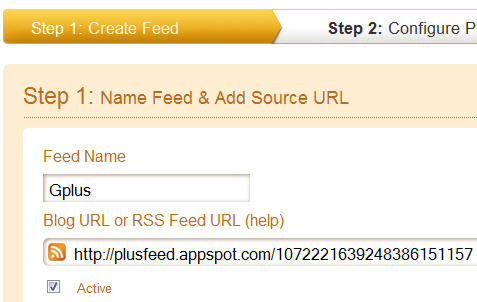
To post Google Plus updates to Twitter, you can use the famous Twitterfeed application. Twitterfeed lets you post updates to Twitter through a feed URL. Sign up for an account on Twitterfeed. Go to the Twitterfeed dashboard and click on the “Create New Feed” button at the top right corner.  Now give a name for your Feed(Google Plus for instance) and enter the Google plus feed URL into the RSS feed URL box. Click on the Advanced Settings button to configure options for update frequency, post content and more.

Now go to Step 2 and select Twitter(You can use Twitterfeed to post updates to Facebook as well but it has lesser options and doesn’t post images either). You will need to authenticate your Twitter account. Once your account is authenticated, click on the Create Service Button. Now whenever you post anything to Google Plus, it will automatically be posted to your Twitter account as well.

Thus, using RSS Graffitti and Twitterfeed, you can easily post Google Plus updates to Twitter or Facebook.


Monday, August 1, 2011

Samsung D Series @ Secret Codes...

*#1111# S/W Version
*#1234# Firmware Version
*#2222# H/W Version
*#8999*8376263# All Versions Together

*#8999*8378# Test Menu
*#4777*8665# GPSR Tool
*#8999*523# LCD Brightness
*#8999*377# Error Menu
*#8999*327# EEP Menu
*#8999*3825523# Don't Know.
*#8999*667# Debug Mode
*#92782# PhoneModel (Wap)
#*5737425# JAVA Mode
*#2255# Call List
*#232337# Bluetooth MAC Adress
*#5282837# Java Version

#*4773# Incremental Redundancy
#*7752# 8 PSK uplink capability bit
#*7785# Reset wakeup & RTK timer cariables/variables
#*1200# ????
#*7200# Tone Generator Mute
#*3888# BLUETOOTH Test mode
#*#8999*324# ??
#*7828# Task screen
#*5111# ??
#*#8377466# S/W Version & H/W Version
#*2562# Restarts Phone
#*2565# No Blocking? General Defense.
#*3353# General Defense, Code Erased.
#*3837# Phone Hangs on White screen
#*3849# Restarts Phone
#*3851# Restarts Phone
#*3876# Restarts Phone
#*7222# Operation Typ: (Class C GSM)
#*7224# !!! ERROR !!!
#*7252# Operation Typ: (Class B GPRS)
#*7271# CMD: (Not Available)
#*7274# CMD: (Not Available)
#*7337# Restarts Phone (Resets Wap Settings)
#*2787# CRTP ON/OFF
#*2886# AutoAnswer ON/OFF
#*3737# L1 AFC
#*5133# L1 HO Data
#*7288# GPRS Detached/Attached
#*7287# GPRS Attached
#*7666# White Screen
#*7693# Sleep Deactivate/Activate
#*7284# L1 HO Data
#*2256# Calibration info? (For CMD set DEBUGAUTONOMY in cihard.opt)
#*2286# Databattery
#*2527# GPRS switching set to (Class 4, 8, 9, 10)
#*2679# Copycat feature Activa/Deactivate
#*3940# External looptest 9600 bps
#*4263# Handsfree mode Activate/Deactivate
#*4700# Please use function 2637
#*7352# BVMC Reg value (LOW_SWTOFF, NOMINAL_SWTOFF)
#*2558# Time ON
#*3370# Same as 4700
#*3941# External looptest 115200 bps
#*5176# L1 Sleep
#*7462# SIM Phase
#*7983# Voltage/Freq
#*7986# Voltage
#*8466# Old Time
#*2255# Call Failed
#*5187# L1C2G trace Activate/Deactivate
#*5376# DELETE ALL SMS!!!!
#*6837# Official Software Version: (0003000016000702)
#*7524# KCGPRS: (FF FF FF FF FF FF FF FF 07)
#*7562# LOCI GPRS: (FF FF FF FF FF FF FF FF FF FF FF FE FF 01)
#*2337# Permanent Registration Beep
#*2474# Charging Duration
#*2834# Audio Path (Handsfree)
#*3270# DCS Support Activate/Deactivate
#*3282# Data Activate/Deactivate
#*3476# EGSM Activate/Deactivate
#*3676# FORMAT FLASH VOLUME!!!
#*4760# GSM Activate/Deactivate
#*4864# White Screen
#*5171# L1P1
#*5172# L1P2
#*5173# L1P3
#*7326# Accessory
#*7683# Sleep variable
#*8465# Time in L1
#*2252# Current CAL
#*2836# AVDDSS Management Activate/Deactivate
#*3877# Dump of SPY trace
#*7728# RSAV
#*2677# Same as 4700
#*3797# Blinks 3D030300 in RED
#*3728# Time 2 Decod
#*3725# B4 last off
#*7372# Resetting the time to DPB variables
#*7732# Packet flow context bit Activate/Deactivate
#*6833# New uplink establishment Activate/Deactivate
#*3273# EGPRS multislot (Class 4, 8, 9, 10)
#*7722# RLC bitmap compression Activate/Deactivate
#*2351# Blinks 1347E201 in RED
#*4472# Hysteresis of serving cell: 3 dB
#*2775# Switch to 2 inner speaker
#*9270# Force WBS
#*7878# FirstStartup (0=NO, 1=YES)
#*3757# DSL UART speed set to (LOW, HIGH)
#*8726# Switches USBACM to Normal
#*8724# Switches USBACM to Generator mode
#*8727# Switches USBACM to Slink mode
#*8725# Switches USBACM to Loop-back mode
#*3838# Blinks 3D030300 in RED
#*2077# GPRS Switch
#*2027# GPRS Switch
#*0227# GPRS Switch
#*0277# GPRS Switch
#*22671# AMR REC START
#*22672# Stop AMR REC (File name: /a/multimedia/sounds/voice list/ENGMODE.amr)
#*22673# Pause REC
#*22674# Resume REC
#*22675# AMR Playback
#*22676# AMR Stop Play
#*22677# Pause Play
#*22678# Resume Play
#*77261# PCM Rec Req
#*77262# Stop PCM Rec
#*77263# PCM Playback
#*77264# PCM Stop Play
#*2872# CNT
*#8999*283# ???
#*22679# AMR Get Time
*288666# ???
*2886633# ???
*#8999*364# Watchdog ON/OFF
#*8370# Tfs4.0 Test 0
#*8371# Tfs4.0 Test 1
#*8372# Tfs4.0 Test 2
#*8373# Tfs4.0 Test 3
#*8374# Tfs4.0 Test 4
#*8375# Tfs4.0 Test 5
#*8376# Tfs4.0 Test 6
#*8377# Tfs4.0 Test 7
#*8378# Tfs4.0 Test 8
#*8379# Tfs4.0 Test 9
#837837# error=...

*#7465625# = Check the locks
*7465625*638*Code# = Enables Network lock
#7465625*638*Code# = Disables Network lock
*7465625*782*Code# = Enables Subset lock
#7465625*782*Code# = Disables Subset lock
*7465625*77*Code# = Enables SP lock
#7465625*77*Code# = Disables SP lock
*7465625*27*Code# = Enables CP lock
#7465625*27*Code# = Disables CP lock
*7465625*746*Code# = Enables SIM lock
#7465625*746*Code# = Disables SIM lock
*7465625*228# = Activa lock ON
#7465625*228# = Activa lock OFF
*7465625*28638# = Auto Network lock ON
#7465625*28638# = Auto Network lock OFF
*7465625*28782# = Auto subset lock ON
#7465625*28782# = Auto subset lock OFF
*7465625*2877# = Auto SP lock ON
#7465625*2877# = Auto SP lock OFF
*7465625*2827# = Auto CP lock ON
#7465625*2827# = Auto CP lock OFF
*7465625*28746# = Auto SIM lock ON
#7465625*28746# = Auto SIM lock OFF


**********************

#*7878# FirstStartup (0=NO, 1=YES)
#*3838# Blinks 3D030300 in RED
#*2077# GPRS Switch
#*2027# GPRS Switch
#*0227# GPRS Switch
#*0277# GPRS Switch
#*22671# AMR REC START
#*22672# Stop AMR REC (File name: /a/multimedia/sounds/voice list/ENGMODE.amr)
#*22673# Pause REC
#*22674# Resume REC
#*22675# AMR Playback
#*22676# AMR Stop Play
#*22677# Pause Play
#*22678# Resume Play
#*77261# PCM Rec Req
#*77262# Stop PCM Rec
#*77263# PCM Playback
#*77264# PCM Stop Play
#*22679# AMR Get Time
*#8999*364# Watchdog ON/OFF
*#8999*427# WATCHDOG signal route setup
*2767*3855# = Full Reset (Caution every stored data will be deleted.)
*2767*2878# = Custom Reset
*2767*927# = Wap Reset
*2767*226372# = Camera Reset (deletes photos)
*2767*688# Reset Mobile TV

Auto Logon in Windows XP.....

Windows XP has the ability to store your password and other pertinent information in the registry so that you can automate the logon process. Keep in mind though, while this is a very convenient method, it has its security risks. Anyone using your computer will have access to your account and your network. Only use this setting if the other people within your network are trusted.

Warning: This tweak involves editing the Windows registry. Mistakes made while editing can have serious effects on your Windows installation. Be sure that you have made a backup copy of the registry prior to making any changes.

Here is how to configure Windows XP to auto logon:
  1. Go to Start>> Run. Type in: regedit [Enter] or click OK.
  2. Drill down to the following registry key:
    HKEY_LOCAL_MACHINE\SOFTWARE\Microsoft\WindowsNT\CurrentVersion\Winlogon
  3. Click the Winlogon entry in the left pane once to empty its contents into the right pane.
  4. Find the DefaultUserName entry in the right pane and double click it.
  5. In the Value data test box, type in your user name. Click OK.
  6. Back in the right pane, locate the entry titled; DefaultPassword. Double click this entry and type in your password in the value data text box. Click OK.
Note: If the DefaultPassword entry does not exist. You will need to create this entry. Here's how:
a. Hold your mouse over the right pane and right click an empty area.
b. Click New>> String Value.
c. A new entry at the bottom of the right pane will now appear. Name it DefaultPassword. Press Enter.
d. Now, double click your new DefaultPassword entry and type in your password in the Value Data box.
  1. Back in the right pane, locate the entry titled AutoAdminLogon. Double click this entry and change the value from 0 to 1. Click OK. The "1" entry turns the feature ON and the "0" turns the feature OFF.
Note: If the AutoAdminLogon entry does not exist, follow the instructions above and create this new string entry.
  1. Exit the Windows Registry and restart your computer.

Wednesday, July 27, 2011

Computer tips to bring computer to normal state when it freezes or hangs up

Sometimes when you are in the middle of someting and suddenly your computer hangs or freezes. You are left with no other option than to restart your computer directly. But the only problem is, you have not saved your work! Don’t panic! There is a solution for that! And you can surely save your file! Here’s how:
First keep on pressing “Num Lock” key until your Operating system is back to normal state. This releases the processor from any busy process. If this doesn’t work then follow the below ten tips to bring you computer back to normal state when it is struck.

1. Click on “ctrl-alt-delete” keys. The windows task manager will then open, click on all programs that you don’t need and end the task. You will see that all programs on your taskbar will close one by one. If this will resolve the issue! – then save!

(Tip 1: if you’re working on an MS Office application, it will automatically save your file in case the programs suddenly shut down —

Tip 2: always save your file at least every 2 minutes by just simply clicking on the “diskette icon”— its just one click!)

2. If it did not resolve the issue, are there some users logged on that computer? If so, go to switch user (for XP) and log off that user, go back to your log on screen and log on again. The reason the computer hang up is because if there are many open programs and applications, these retains in the memory, if it is too much for the memory to handle, it freezes! Another reason too the computer hang up is because if you are connected to the internet via dial up, and you are running too many applications and opening many websites. So I suggest, if you are multimedia user or a heavy internet user, then you are better off with a higher memory, at least 512Mb of memory. There are simple ways to avoid computer to freeze or hang up:

3. Clean your history at least once a week >tools>internet options>clear history. I normally set my history to “0”, meaning, when I restart my computer, it doesn’t save history pages that I have visited

4. Delete all internet temporary files >tools>internet options>delete files (do the “offline” content too!)

5. Delete cookies (some do not do this, but I do delete cookies at least once a week!) >tools>internet options>delete cookies
6. Remove unnecessary programs that you no longer use they are just occupying space and memory! >control panel>add/remove programs

7. Do defragmentation at least once a week >point the mouse to “start” button, then right click “explore”>right click the mouse pointing to drive C (which is usually the main system logical drive) >properties>tools>defragment now

8. You can also check the logical drive’s volume for errors >point the mouse to “start” button, then right click “explore”>right click the mouse pointing to drive C (I repeat, is usually the main system logical drive) >properties>tools>check now

9. It is better to have only one user being logged on. Even if there are many users, make sure the user logs off after using the computer, rather than keeping it logged on and you do the switching of users. Switching users is good as long as you don’t keep all users logged on—I think that is more logical

10. Always shut down properly the computer (do NOT use the power button when turning it off!

Tuesday, July 26, 2011

How to Create your own Run Command ?

I talk a lot about Windows, and using the “Run” command is a large part of it. It is a simple and easy method of accessing programs quickly. If you happen to want to make a shortcut to an application your own way, guess what, you can!

Let’s do it:

Step 1: Go to “Start,” “Run,” (told you we use it a lot) and type regedit.

Step 2: Navigate to the following:
HKEY_LOCAL_MACHINE\SOFTWARE\Microsoft\Windows\CurrentVersion\Apps Path

Step 3: Create a new folder/key under Apps Path. (Right-Click Apps Path and click “New,” “Key.”)

Step 4: Title the new folder/key the name of the application, e.g. firefox.exe.

Step 5: Right-Click the default string value (the thing automatically created in your new folder) and click Modify.

Step 6: Change the value to the path of the executable you are attempting to run. E.g. C:\Program Files\Mozilla Firefox\firefox.exe.

Step 7: Create a new “String Value” by right-clicking under the default value (the thing we just edited) and select “New,” “String Value.” Name it Path and enter the value as the same path you previously entered.


Step 8: Done! Now, all you need to do is go to “Start,” “Run,” and type the name of your command!

Monday, July 25, 2011

Forgotten Ubuntu Password – Reset within minutes

Forgotten Ubuntu Password – Reset within minutes

If you’ve ever forgotten your password, you aren’t alone… it’s probably one of the most common tech support problems I’ve encountered over the years. Luckily if you are using Ubuntu they made it incredibly easy to reset your password.

All it takes is adjusting the boot parameters slightly and typing a command or two, but we’ll walk you through it.

Reset Your Ubuntu Password

Reboot your computer, and then as soon as you see the GRUB Loading screen, make sure to hit the ESC key so that you can get to the menu.

Root Shell – Easy Method

If you have the option, you can choose the “recovery mode” item on the menu, usually found right below your default kernel option.

Then choose “Drop to root shell prompt” from this menu.

This should give you a root shell prompt.

Alternate Root Shell Method

If you don’t have the recovery mode option, this is the alternate way to manually edit the grub options to allow for a root shell.

First you’ll want to make sure to choose the regular boot kernel that you use (typically just the default one), and then use the “e” key to choose to edit that boot option.

Now just hit the down arrow key over to the “kernel” option, and then use the “e” key to switch to edit mode for the kernel option.

You’ll first be presented with a screen where you can find this written “ro single”

You’ll want to remove the “ro single” part with the backspace key, and then add this onto the end:

rw init=/bin/bash

Once you hit enter after adjusting the kernel line, you’ll need to use the B key to choose to boot with that option.

At this point the system should boot up very quickly to a command prompt.

Changing the Actual Password

You can use the following command to reset your password:

passwd

After changing your password, use the following commands to reboot your system. (The sync command makes sure to write out data to the disk before rebooting)

sync
reboot –f

I found that the –f parameter was necessary to get the reboot command to work for some reason. You could always hardware reset instead, but make sure to use the sync command first.
And now you should be able to login without any issues.

How Safe is Your Computers ?

pc-security.jpg

Security Facts about an average computer user

  • 70% users Install a lot of softwares or games which he finds interesting.
  • 80%of the user are not ready to update their system with latest patches.
  • 60% of the user don’t know if there system is secure.
  • 70% user don’t know how to find if the system is really secure


So how do you find if your system is secure and patched with latest patches and updates. Security System Analyzer (SSA) is a tool designed to check your system for the latest security updates. This tool can scan your system and find out the vulnerabilities about the missing patches and updates and provide you a link from where to get.

Features of SSA

  1. Finds security vulnerabilities and the missing patches for windows.
  2. Gives a direct link to possible patches to be used to remove the security hole.
  3. Supports Windows 2000, XP, Vista.
  4. One click to get the information about latest security vulnerabilities and others.
  5. Generates HTML reports which makes view easy and can be exported.

Open Vulnerability and Assessment Language (OVAL) is an international, information security, community standard to promote open and publicly available security content, and to standardize the transfer of this information across the entire spectrum of security tools and services. OVAL includes a language used to encode system details, and an assortment of content repositories held throughout the community.

ssa-startup.png

How SSA works?

This software completes the whole process in 3 steps:

  1. Representing configuration information of systems for testing;
  2. Analyzing the system for the presence of the specified machine state (vulnerability, configuration, patch state, etc.)
  3. Reporting the results of this assessment

ssa-update.png

Resources

How to Change IP in a ONE Minutes.....

This article will help you to change your IP address within a minute. Just follow the following step and you will be thru.

1. Click on "Start" in the bottom left hand corner of screen
2. Click on "Run"
3. Type in "command" and hit ok

You should now be at an MSDOS prompt screen.

4. Type "ipconfig /release" just like that, and hit "enter"
5. Type "exit" and leave the prompt
6. Right-click on "Network Places" or "My Network Places" on your desktop.
7. Click on "properties"

You should now be on a screen with something titled "Local Area Connection", or something close to that, and, if you have a network hooked up, all of your other networks.

8. Right click on "Local Area Connection" and click "properties"
9. Double-click on the "Internet Protocol (TCP/IP)" from the list under the "General" tab
10. Click on "Use the following IP address" under the "General" tab
11. Create an IP address (It doesn't matter what it is. I just type 1 and 2 until i fill the area up).
12. Press "Tab" and it should automatically fill in the "Subnet Mask" section with default numbers.
13. Hit the "Ok" button here
14. Hit the "Ok" button again

You should now be back to the "Local Area Connection" screen.

15. Right-click back on "Local Area Connection" and go to properties again.
16. Go back to the "TCP/IP" settings
17. This time, select "Obtain an IP address automatically"
tongue.gif 18. Hit "Ok"
19. Hit "Ok" again
20. You now have a new IP address

With a little practice, you can easily get this process down to 15 seconds.

P.S:
This only changes your dynamic IP address, not your ISP/IP address. If you plan on hacking a website with this trick be extremely careful, because if they try a little, they can trace it back

Thursday, July 21, 2011

Disable XP's splash screen

The Windows XP splash screen is designed to hide all of the behind the scenes boot information that is ordinarily never needed to view. However, if you need to troubleshoot a startup problem, it may be necessary to view this information to determine the trouble. To find out, you can disable the splash screen by making a small change to the Boot.ini file. Follow the steps below:
  1. Press [Windows][Break] to open the System Properties dialog box.
  2. On the Advanced tab, click the Settings button in the Startup And Recovery section.
  3. In the Startup And Recovery dialog box, select the Edit button in the System Startup section.
  4. The Boot.ini file will open in Notepad; locate the line that ends with the /fastdetect switch.
  5. Position your cursor right after the parameter, press the spacebar, and add the /SOS switch.
  6. Save the Boot.ini file, and close Notepad.
  7. Click Cancel to close both the Startup And Recovery dialog box and the System Properties dialog box.
  8. Restart the system.
When the system restarts, the splash screen will no longer appear. You can observe some of the operations that Windows XP performs during the startup stage.
To revive the splash screen, simply repeat the above steps to edit the Boot.ini file and remove the /SOS switch.